Connect Ad Badger to Claude or ChatGPT and you can simply ask about your Amazon Ads data in plain English. "Which of my campaigns had the highest ACOS last month?" The Badger goes digging and comes back with an answer pulled from your own account.
Every new connection starts read-only. Honey badgers are famously fearless. This one is famously well behaved: out of the box, Claude and ChatGPT can look at your advertising data all they like, but they can't change your bids, adjust your budgets or pause anything. If you'd like them to make changes too, you can allow that, and they'll still ask you before every single one. See Want it to make changes too? below.
Setup takes about five minutes, and you only do it once. Then the Badger stays put.
Heads up: these screens change often
Claude and ChatGPT aren't our products, and both change constantly. Anthropic and OpenAI regularly rename menus, move buttons and reorder steps, usually without notice. We re-check this guide regularly, but there will be times when what's on your screen doesn't match what's written here.
We last checked these steps on September 23, 2026.
If your screen looks different, go by the vendor's own guide. It's always the most current:
- Claude: Get started with custom connectors using remote MCP
- ChatGPT: Developer mode and MCP apps in ChatGPT
Whatever the menus look like, the job is the same: find the place to add a custom connector (Claude) or MCP app (ChatGPT) by its web address, enter https://ai.adbadger.com/mcp/ads, and sign in with your normal Ad Badger login. If you get stuck, contact support and we'll walk through it with you.
Before you start
You'll need:
- An Ad Badger account. This works on every Ad Badger plan, free trials included.
- At least one Amazon Ads account connected in Ad Badger. If you haven't connected one yet, do that first. Even a badger can't dig up data that isn't there.
- A Claude or ChatGPT account that supports custom connectors. See the notes in each section below.
You do not need Amazon API keys, AWS credentials, or a developer account.
The address you'll need
Both Claude and ChatGPT ask for the same address:
https://ai.adbadger.com/mcp/ads
Copy it exactly, including the /mcp/ads on the end. The Badger is particular about its address. Entering just ai.adbadger.com is the single most common reason setup fails.
Connect Claude
Claude is Anthropic's product, not ours. We don't control how it looks or works, and these steps can change at any time without notice. The instructions below match the Claude desktop app as of September 23, 2026. If what you see on your screen doesn't match, always go by Anthropic's own documentation. It's the authority, and it's kept current: Get started with custom connectors using remote MCP. That guide is also where to check whether your Claude plan supports custom connectors.
-
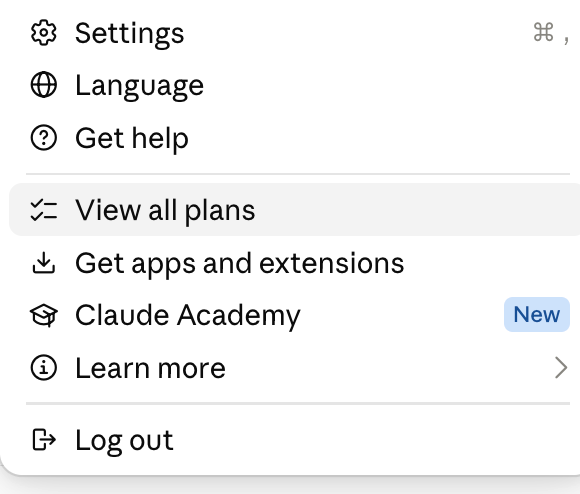
Open your profile menu and choose Settings.
-
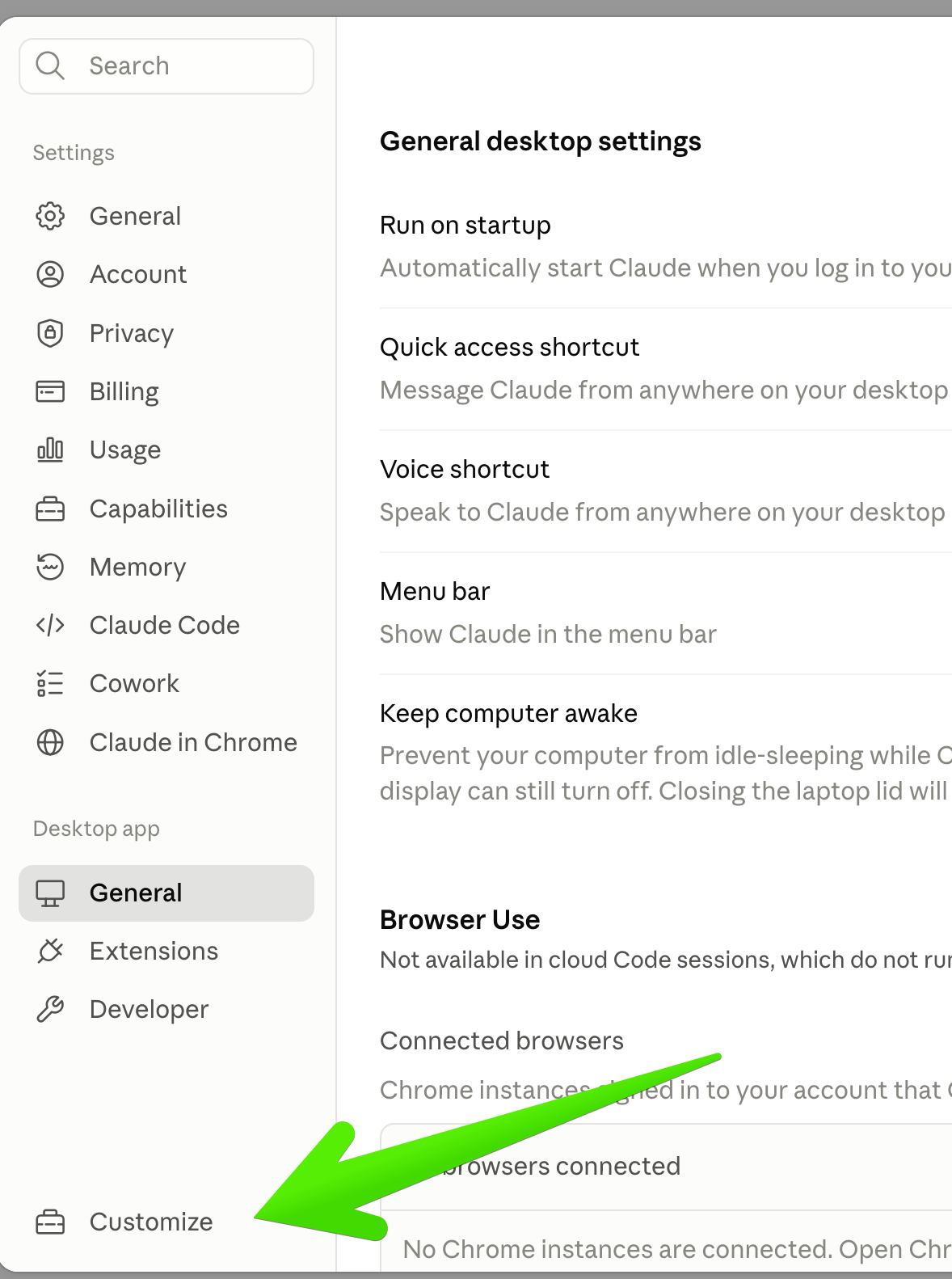
At the bottom of the left sidebar, click Customize.
-
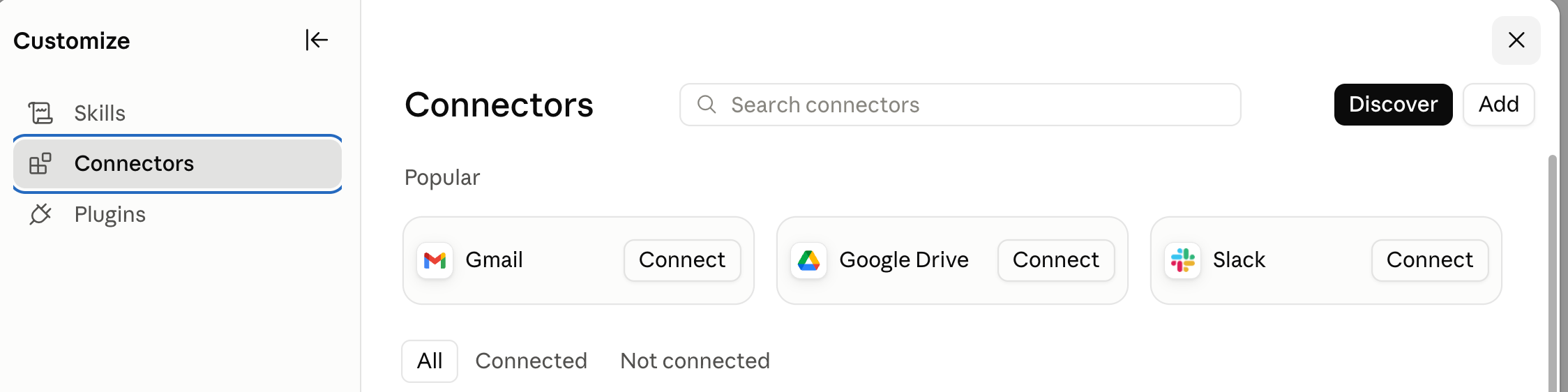
Choose Connectors.
-
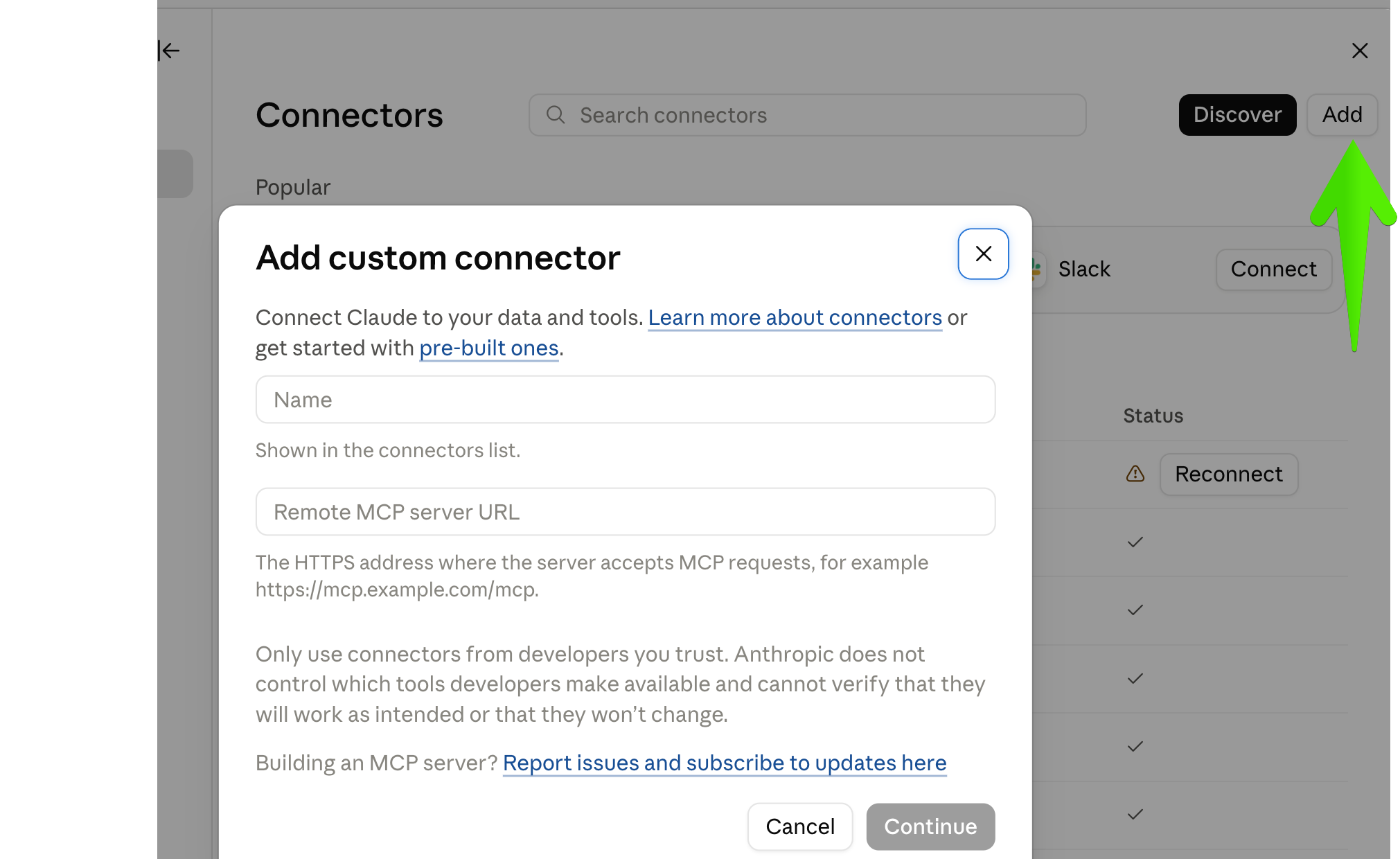
Click Add in the top right. (Not Discover. That's Claude's directory of pre-built connectors, and Ad Badger isn't listed there.)
-
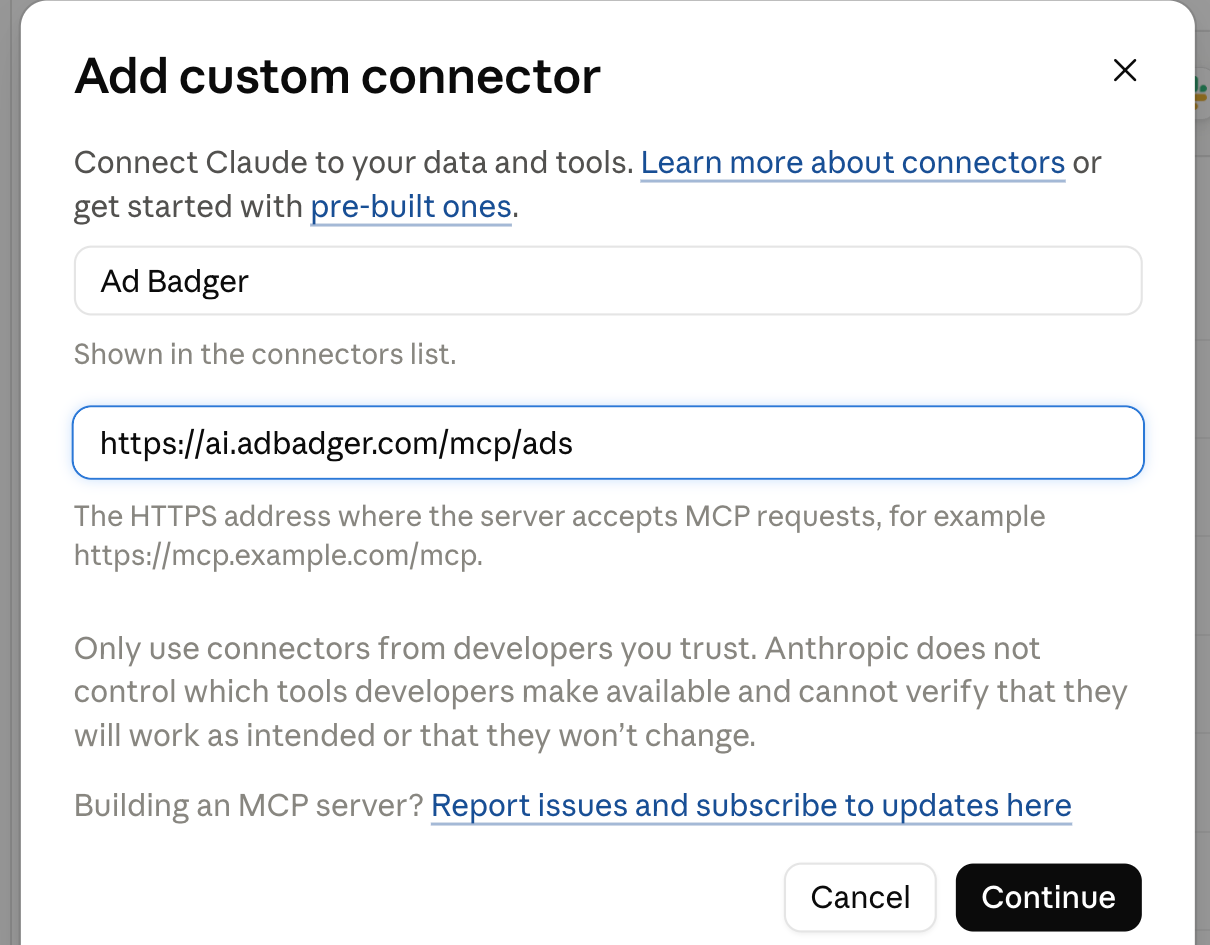
Fill in the two fields:
- Name:
Ad Badger - Remote MCP server URL:
https://ai.adbadger.com/mcp/ads
- Name:
-
Click Continue.
-
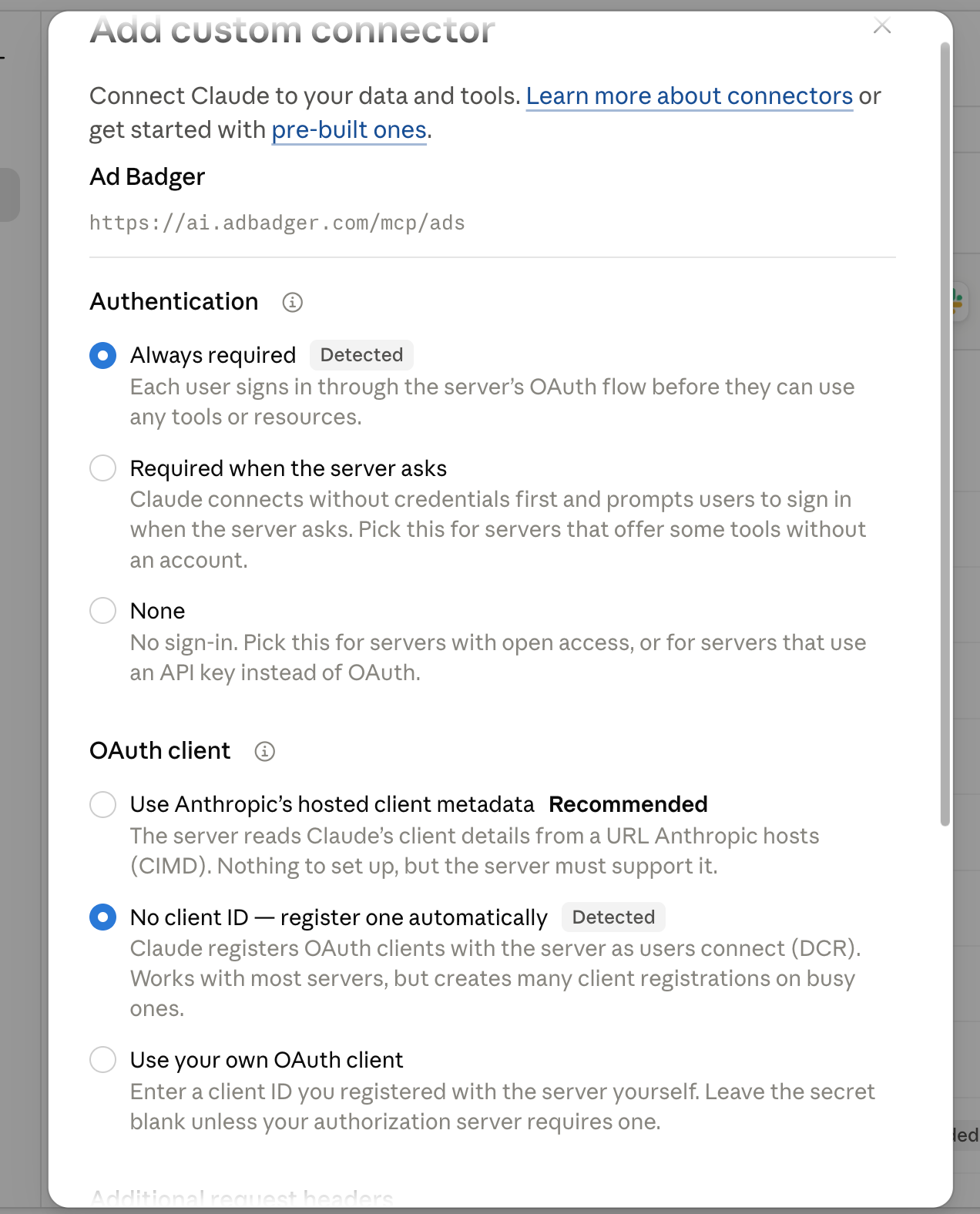
The next screen shows sign-in and OAuth client options. This is the one spot where setup usually goes sideways, so read the note below before you touch anything. Leave them exactly as they are. Claude inspects our server and pre-selects the right settings for you. They're the ones marked Detected.
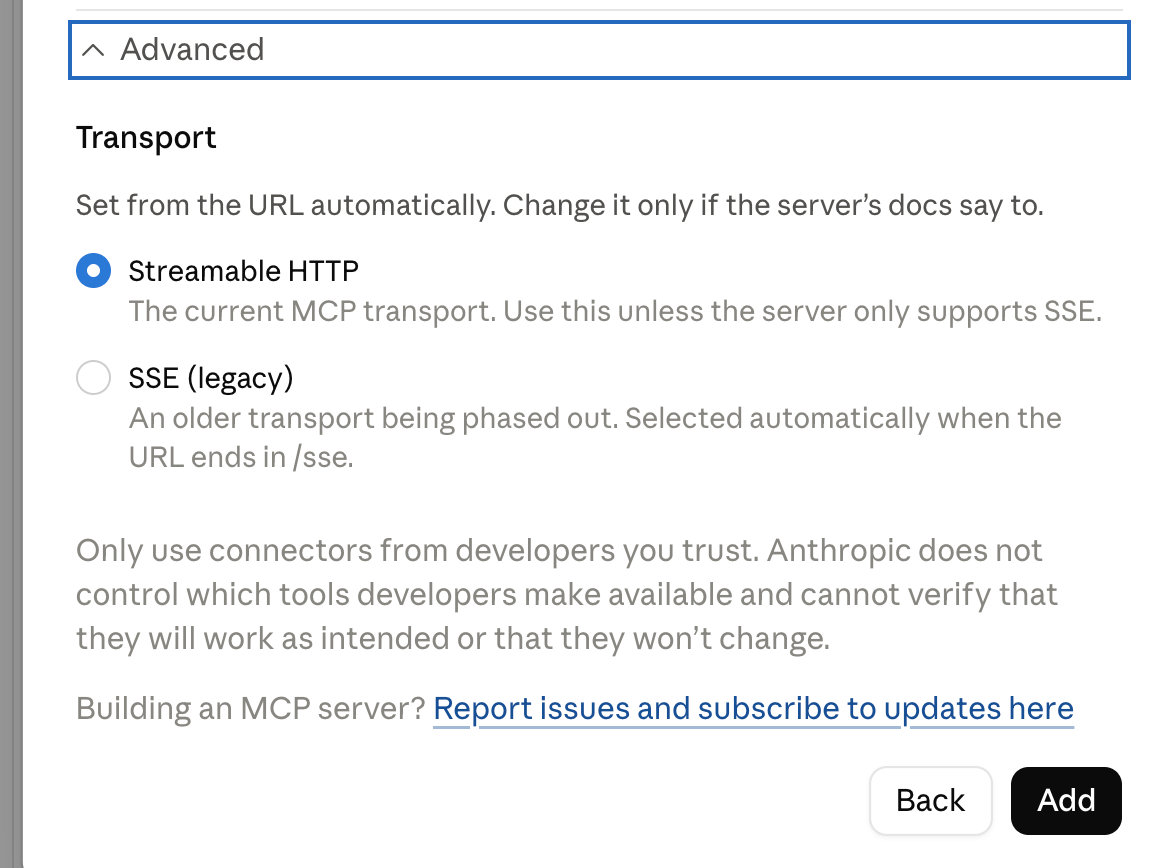
Don't switch to the OAuth client option marked Recommended. Depending on your version of Claude, it's labelled "Use Anthropic's hosted client metadata" or "Use Claude's published identity." Ad Badger doesn't use that method, and choosing it will stop the connection from working. The correct choice is the pre-selected one that registers automatically, labelled No client ID — register one automatically or Register automatically. The same goes for anything under Advanced: the transport setting is filled in from the address automatically.
-
Click Add.
-
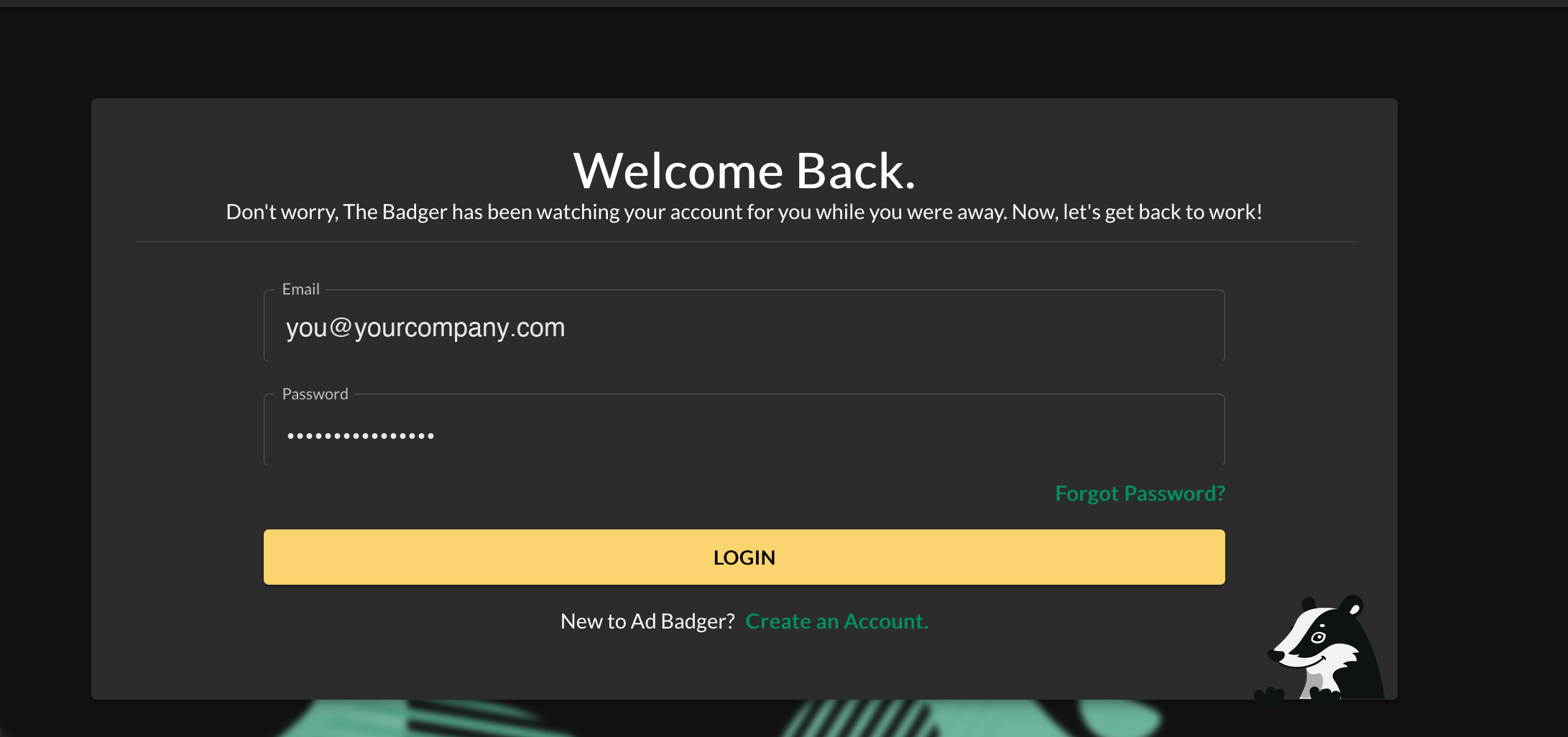
An Ad Badger sign-in screen appears. Sign in with your normal Ad Badger email and password.
-
Review the consent screen and approve it. The connection starts read-only.
-
You'll see "Checking connection…" briefly, and then Ad Badger appears in your connectors list. That's it.
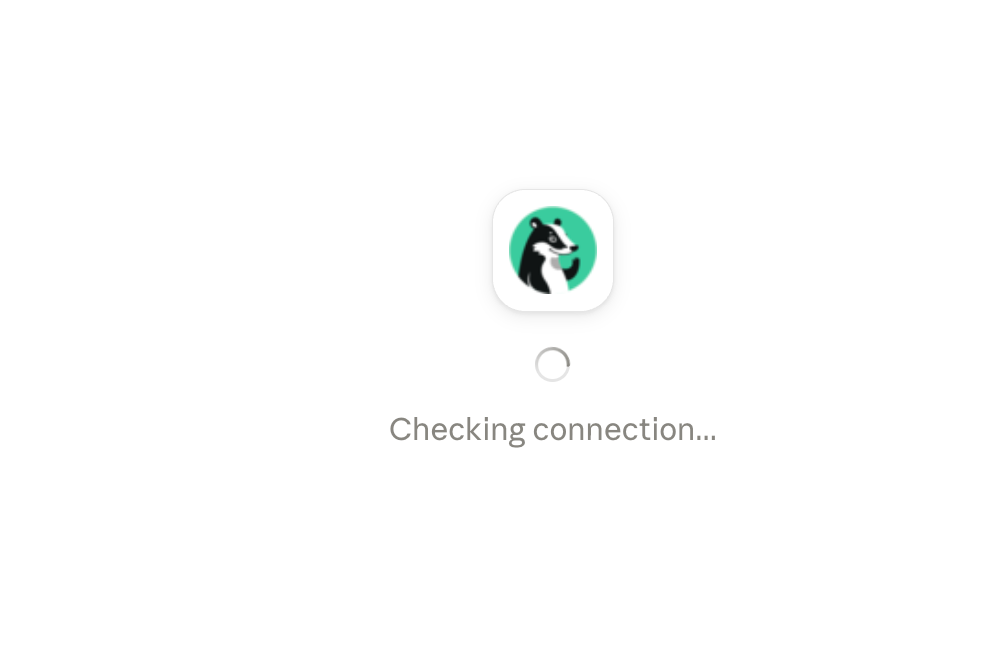
On Claude for web, the path is the same: Customize → Connectors → Add.
On a Team or Enterprise plan, you may not see an Add button at all. Custom connectors are usually added once for the whole organization by an owner, under Organization settings → Connectors. If you can't add it yourself, ask whoever administers your Claude workspace.
Connect ChatGPT
ChatGPT is OpenAI's product, not ours. We don't control it, and these screens change often. The steps below were last checked on September 23, 2026. OpenAI describes this area as still rolling out, and says functionality, UI and permissions may change as they iterate. If what you see doesn't match what's written here, go by OpenAI's own guide: Developer mode and MCP apps in ChatGPT. That's also the place to check whether your ChatGPT plan supports this, since it varies and changes.
1. Turn on Developer mode
Go to Settings → Security and login and switch on Developer mode.
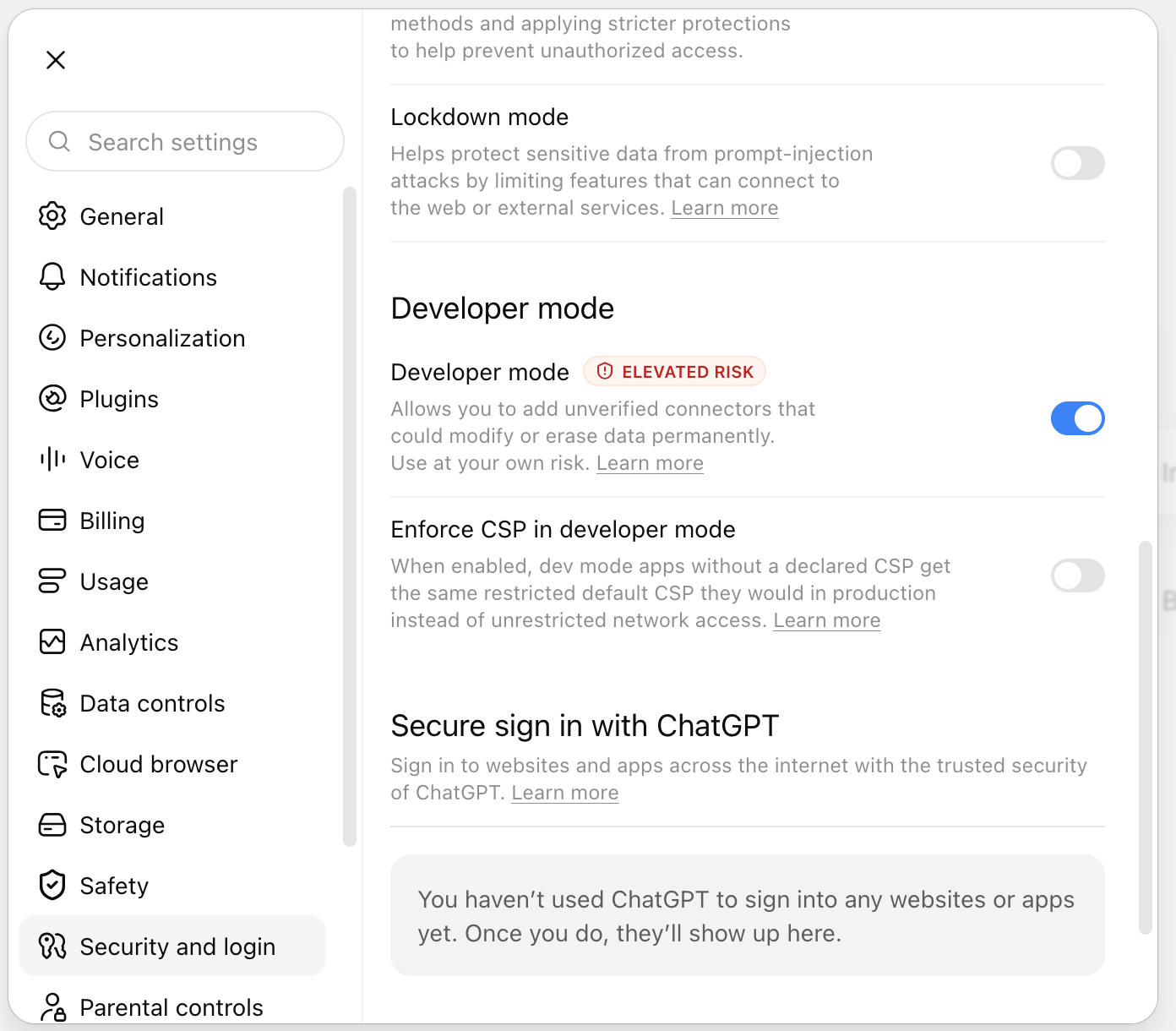
You'll see OpenAI label this ELEVATED RISK, warning that it "allows you to add unverified connectors that could modify or erase data permanently." That warning is about developer mode in general, not about Ad Badger specifically. It applies to any connector OpenAI hasn't reviewed. The Ad Badger connection is read-only unless you allow changes, and even then it can only change bids, budgets and on/off status, after asking you. It can't erase anything.
On a Business, Enterprise or Edu workspace, an administrator may need to enable Developer mode for you before you can switch it on.
2. Create the connector
-
Click Plugins in ChatGPT's left sidebar, or go straight to chatgpt.com/plugins.
-
Click Create app, then choose Create MCP app. (No Create app button? Developer mode probably isn't on yet. Go back to Turn on Developer mode above.)
-
Name:
Ad Badger(an Icon and Description are optional, so skip them) -
Connection: leave the toggle on Server URL (not Tunnel) and enter:
https://ai.adbadger.com/mcp/ads -
Authentication: choose OAuth.
-
Leave Advanced OAuth settings alone. ChatGPT reads the correct settings from our server once you've entered the address. If you open that panel, you'll see Registration method set to Dynamic Client Registration (DCR). That's right, and there's nothing to change.
You may also see a note reading "CIMD is unavailable because the server did not advertise CIMD support." That's expected and harmless. CIMD is a different sign-in method that Ad Badger doesn't use. ChatGPT is telling you it noticed, and has already picked the right one.
-
Tick "I understand and want to continue." The text beside it says OpenAI hasn't reviewed this MCP server. That's true of every connector that isn't in their reviewed list, including ours.
-
Click Create.
3. Sign in
-
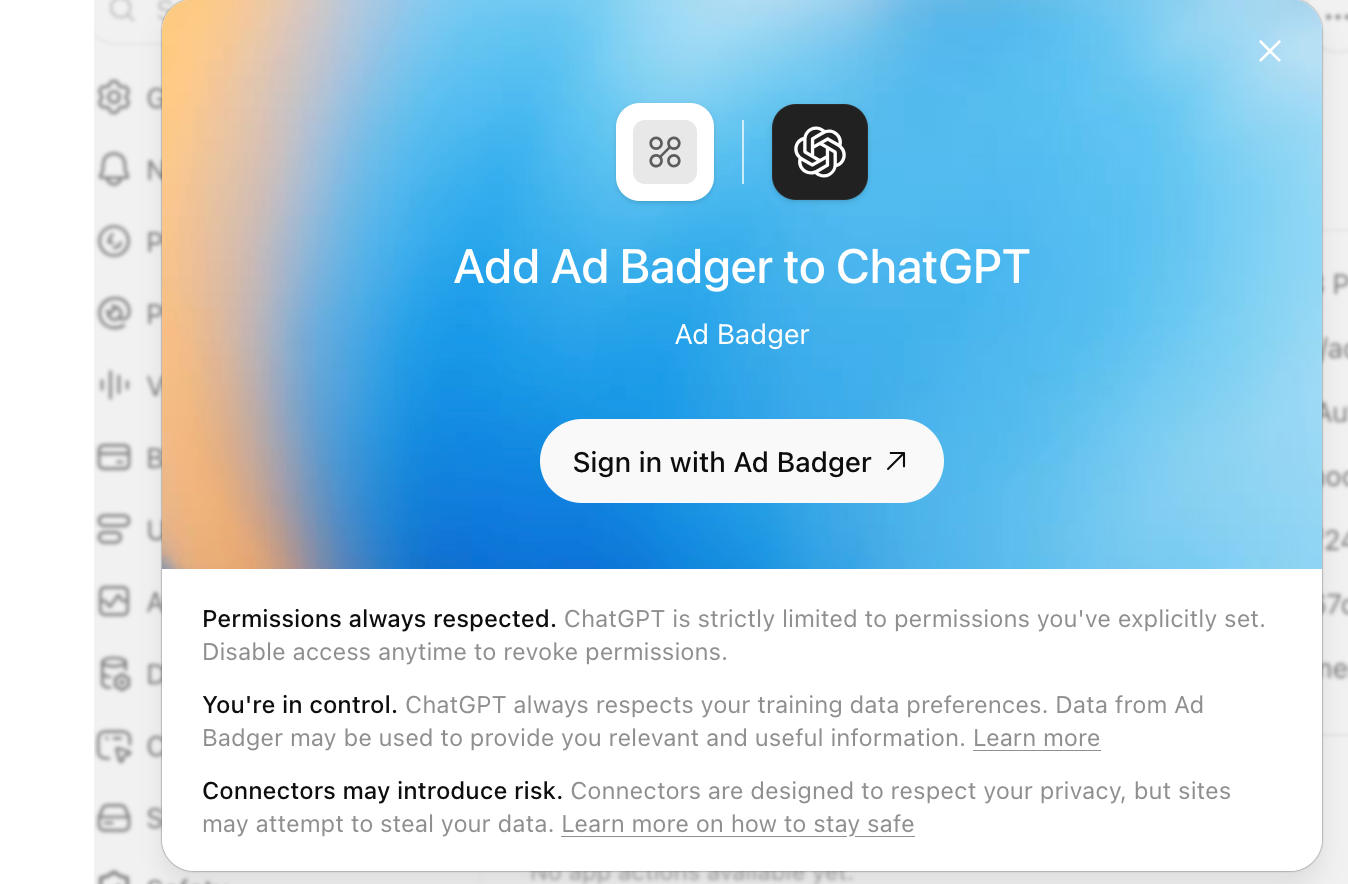
A screen appears headed Add Ad Badger to ChatGPT. Click Sign in with Ad Badger.
-
Sign in with your normal Ad Badger email and password.
-
Review the consent screen and approve it. The connection starts read-only.
4. Use it
Open a new chat, type @, and pick Ad Badger to bring it into the conversation.
If Ad Badger isn't in the list, go back to Plugins, open the Personal tab, click Ad Badger, and add it from there.
Ask your first question
Whichever one you connected, start here:
Which Amazon Ads profiles do I have connected in Ad Badger?
Ask this first. It points the Badger at the right burrow. Every other question needs to know which advertising account you mean, and this is also how a phrase like "my UK account" gets matched to the right one. If this returns your profiles, you're connected properly.
Want it to make changes too?
Every connection starts read-only. To let Claude or ChatGPT make changes for you, re-authorize the Ad Badger connection from your AI app and allow changes when you sign in.
With changes allowed, it can:
- Change bids on keywords and product targets
- Change daily budgets on campaigns
- Pause or enable campaigns, keywords and product targets
It can handle up to 100 of these in one request, for example "lower bids by 20% on keywords in this campaign with an ACOS over 60%."
The guardrails stay on:
- It asks before every change. It shows you exactly what it's about to change and waits for your yes.
- Every change is logged. Each one appears in your Ad Badger change history as Badger MCP (AI).
- Sponsored Products only, for now. Sponsored Brands and Sponsored Display stay read-only.
- Nothing can be deleted, and it can't create campaigns. Pausing is always reversible.
Changed your mind? Re-authorize the same way without allowing changes and you're back to read-only.
If it doesn't connect
None of this is fatal. Badgers are hard to discourage.
"Couldn't connect" or the address is rejected. Check you entered the full address including /mcp/ads, not just ai.adbadger.com.
"Subscription is not active." Your Ad Badger account doesn't currently have an active plan or trial. Contact support and we'll sort it out with you.
No profiles come back. Your Amazon Ads account may not be connected inside Ad Badger yet. Check that first, then try again.
You can't find Connectors, or there's no Add button. In Claude, Connectors sits under Customize, not in the main Settings list. If there's still no Add button, you're likely on a Team or Enterprise plan where an owner adds connectors for everyone.
In ChatGPT, there's no Create app button. Developer mode probably isn't switched on yet. Turn it on under Settings → Security and login, then reload the Plugins page. On a Business, Enterprise or Edu workspace, an administrator may need to allow it first.
In ChatGPT, it fails before you ever see a login screen. That's the connector being created, not your Ad Badger login. Double-check the address and that Authentication is set to OAuth.
You changed one of the OAuth options and now it won't connect. Remove the connector and add it again, leaving the pre-selected settings untouched.
It worked before and now it doesn't. Sign-in sessions can expire. Reconnect the connector and sign in again. In Claude this shows as a Reconnect button next to Ad Badger in your connectors list.
Still stuck? Contact support and tell us which assistant you're using and where in these steps it stopped.
What happens to your data
A new connection is read-only. It can look at your advertising data and can't change anything in your account. If you allow changes, it can change only bids, budgets and on/off status for Sponsored Products, after asking you, and every change shows in your Ad Badger change history as Badger MCP (AI). It can't delete anything. The Badger is a watcher first, and a meddler only with your permission.
To stop all access, remove the Ad Badger connector in your AI app: in Claude under Settings → Customize → Connectors, or in ChatGPT's connector settings. Disconnecting takes effect immediately, and nothing keeps running in the background.
Ad Badger never uses your advertising data to train AI models. What Claude or ChatGPT do with your conversations is governed by the data settings on your own Claude or ChatGPT account.
Questions?
You don't need to be stuck to get in touch. We like hearing from you. If you're unsure whether this is right for you, want help getting your first question working, or something in these steps doesn't look like what's on your screen, contact Ad Badger support. We're happy to walk through it with you.
Next
Now that you're connected: What can I ask once Ad Badger is connected to Claude or ChatGPT?. It covers example questions, the difference between keywords and search terms, making changes, and what to expect from the answers.