Search Trends shows how much of Amazon search demand your brand actually captures—over time and at the keyword level.
Powered by Amazon’s Search Query Performance (SQP) data, this report helps you understand where your brand is winning visibility, where competitors are ahead, and which search terms offer the biggest growth opportunities.
With Search Trends, you can:
-
Track your share of impressions, clicks, and purchases
-
Monitor performance changes over time
-
Identify high-volume keywords worth defending or scaling
-
Spot visibility gaps before they impact revenue
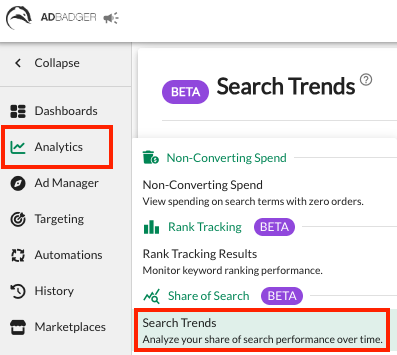
📍 How to Access Search Trends
- Click Analytics in the left-hand menu.
- Select Share of Search (BETA) → Search Trends.
You’ll see the Search Trends (Beta) page with keyword-level performance tied to your top-performing products.
How It Works
Product Coverage
-
Search Trends automatically identifies your top 100 products by revenue
-
If a product doesn’t appear in the table or ASIN selector for a chosen date range, it means it was not among your top performers during that period.
Data Refresh Cadence
-
Weekly reports are added every Sunday.
-
Monthly reports are added on the first day of each month.
Viewing & Filtering Data
-
View data across All Products or select specific ASINs.
-
Use the date selector to compare performance across time periods.
-
Filter and search within the table to focus on specific queries or products.
Understanding the Table
Each row represents a search query–ASIN combination with the following key metrics:
-
Search Query – The customer keyword searched on Amazon
-
ASIN – The product receiving impressions
-
Product – Product title and image for quick identification
-
Search Query Score – Relative importance of the query based on Amazon SQP weighting
-
Search Query Volume – Total customer search volume for that keyword
-
Market Impressions – Total impressions across all advertisers and organic results
These metrics help you understand both demand (volume) and visibility (impressions) at the keyword level.
💡 Tips for Best Use
Get the most value out of Search Trends by using it as a decision-making tool, not just a reporting dashboard.
1️⃣ Review Trends Regularly (Not Just Once)
Search visibility changes quickly. Check Search Trends:
-
Monthly for strategic planning
-
After major bid, budget, or listing updates
-
During peak seasons or promotions
Consistent reviews help you spot issues before they impact revenue.
2️⃣ Start With All Products, Then Drill Down
-
Begin with All Products to understand overall brand visibility
-
Switch to specific ASINs to diagnose performance issues or wins
This top-down approach helps you prioritize where to focus first.
3️⃣ Use Time Comparisons to Validate Changes
Whenever you:
-
Adjust bids or budgets
-
Launch new campaigns
-
Optimize listings or pricing
Use time comparisons to confirm whether those changes actually improved your Share of Search.
4️⃣ Watch for Early Warning Signs
Look for:
-
Declining Brand Impression Share % on important keywords
-
Stable impressions but falling clicks
-
Strong clicks with weakening purchases
These signals often appear before revenue drops.
5️⃣ Prioritize High-Volume, Low-Share Keywords
High search volume + low Brand Impression Share usually means:
-
Competitors are winning visibility
-
There’s room to scale efficiently
These keywords are often your biggest growth opportunities.
6️⃣ Pair Search Trends With Listing Reviews
If metrics drop:
-
Low clicks → review images, titles, pricing
-
Low conversions → review bullets, A+ content, reviews
Search Trends tells you where the problem is—your listing helps fix it.
🚀 Why Share of Search Matters
Share of Search helps you see where you truly stand in Amazon search—not just how much you spend.
By understanding visibility trends over time, you can invest confidently in the keywords that grow your market share, revenue, and brand authority.
🚧 Beta Notes
-
Data comes directly from Amazon’s SQP reports via SP API
-
Some keywords may be excluded due to Amazon reporting thresholds
-
Metrics and availability may evolve during the Beta phase
Need Help?
💬 Reach out to our Support Team anytime through the Live Chat bubble in the lower-right corner of the tool.