Do you need to add more team members to your account? Do you need to share view-only access to your client's profile so they can view your work? All of that is possible with People Management inside Ad Badger.
How Do You Invite & Manage Additional Users or Clients?
Inviting new users and managing users with access to your Ad Badger account is simple!
First, you will need to purchase an additional user.
** If additional users have already been purchased on your subscription, you can skip these steps!
-
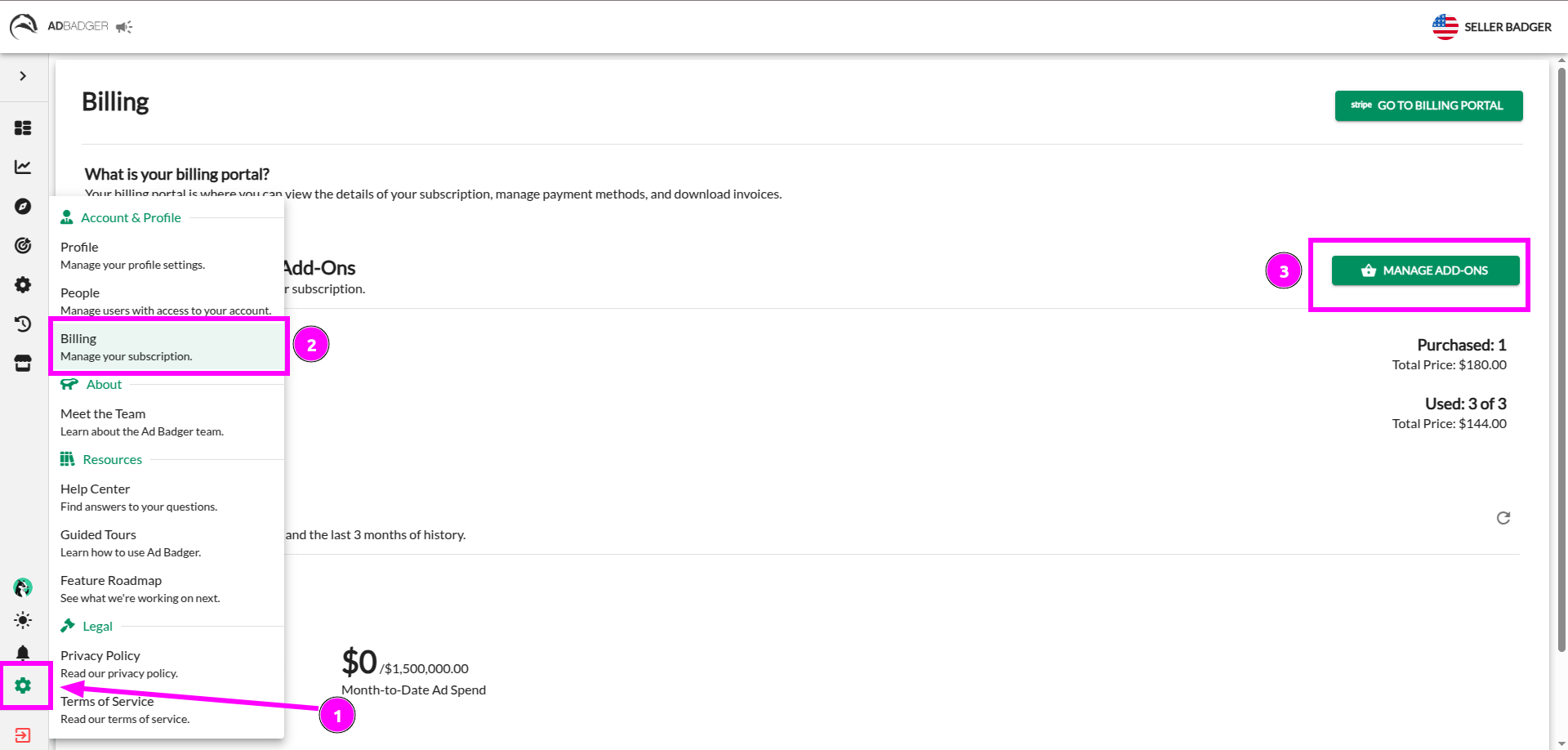
Click the Settings Gear in the menu.
-
Click on the Billing link to navigate to the Billing screen.
-
Once viewing Billing, find and click on "Manage Add-Ons."
-
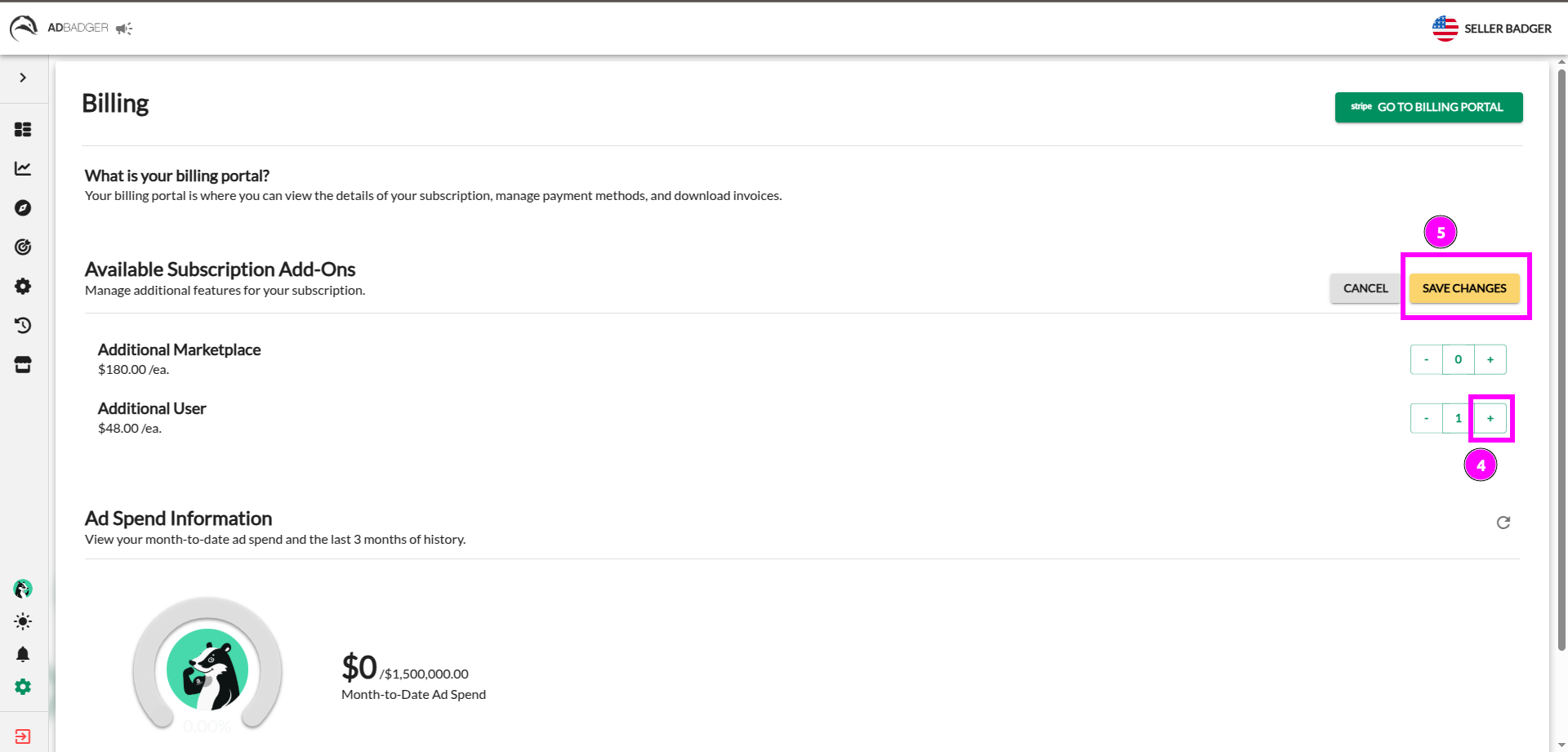
Click the + sign next to the "Additional User" quantity counter. Add as many as you need!
-
Click on 'Save Changes' to review the changes to your subscription that you are about to make.
-
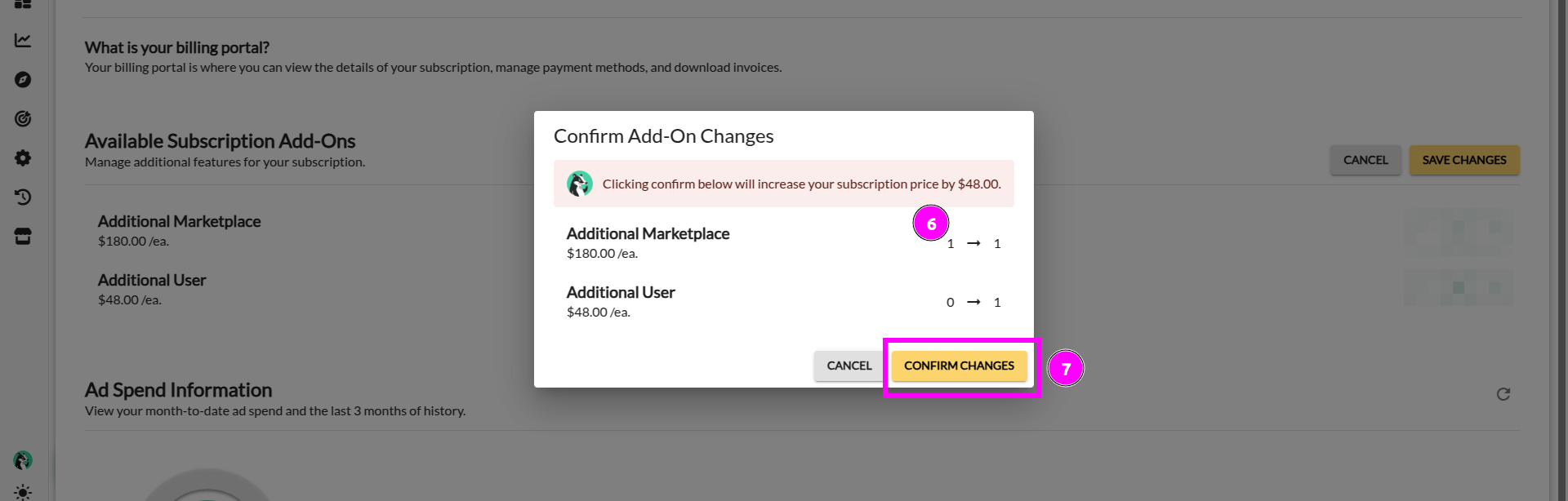
Review the new quantities of your subscription add-ons & the way it will affect your recurring subscription price.
-
If you're happy with your changes, click 'Confirm Changes.'
Second, you are ready to invite an additional user to join your account.
-
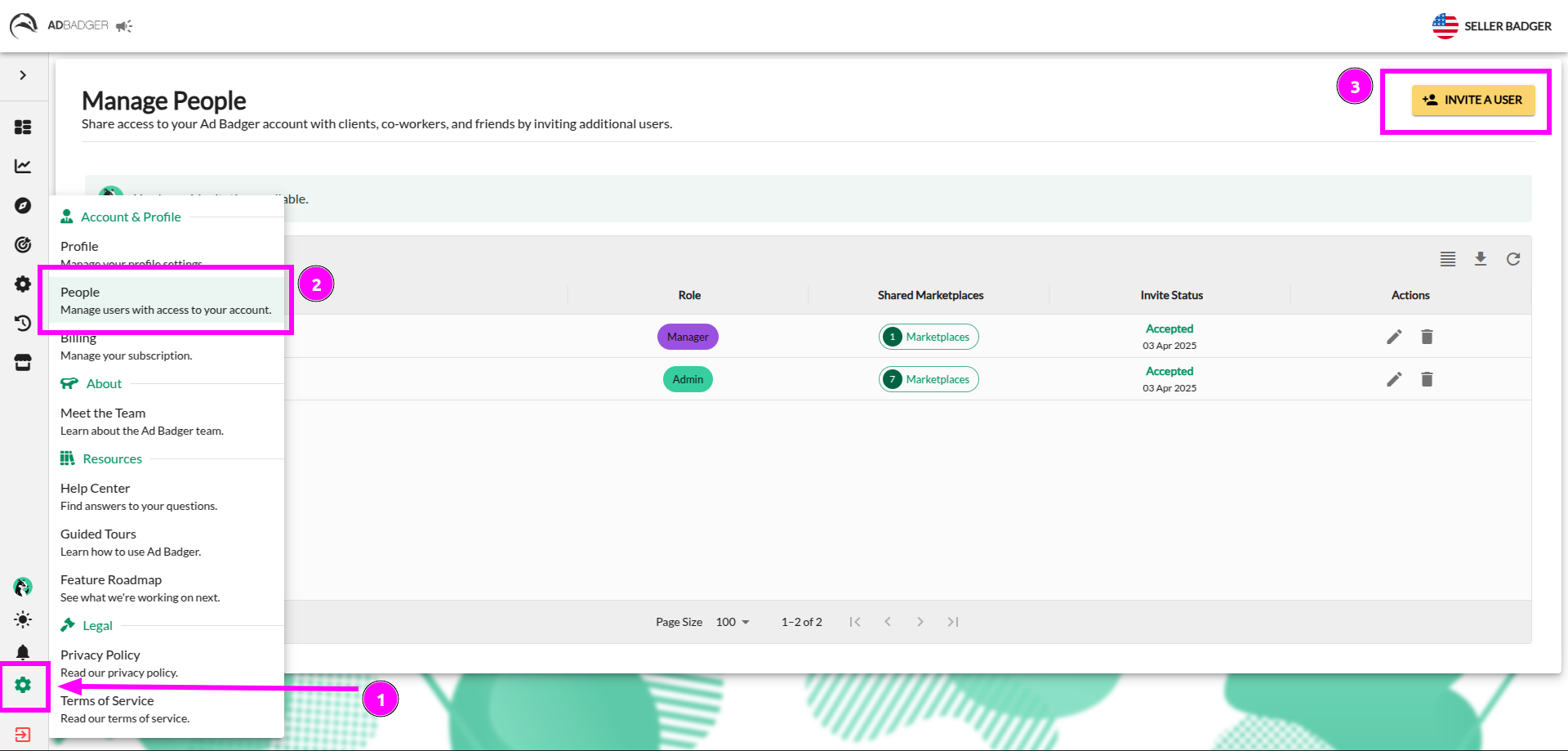
Click the Settings Gear in the menu.
-
Click the People link to navigate to the "Manage People" screen.
-
Once viewing Manage People, find and click on "Invite a User."
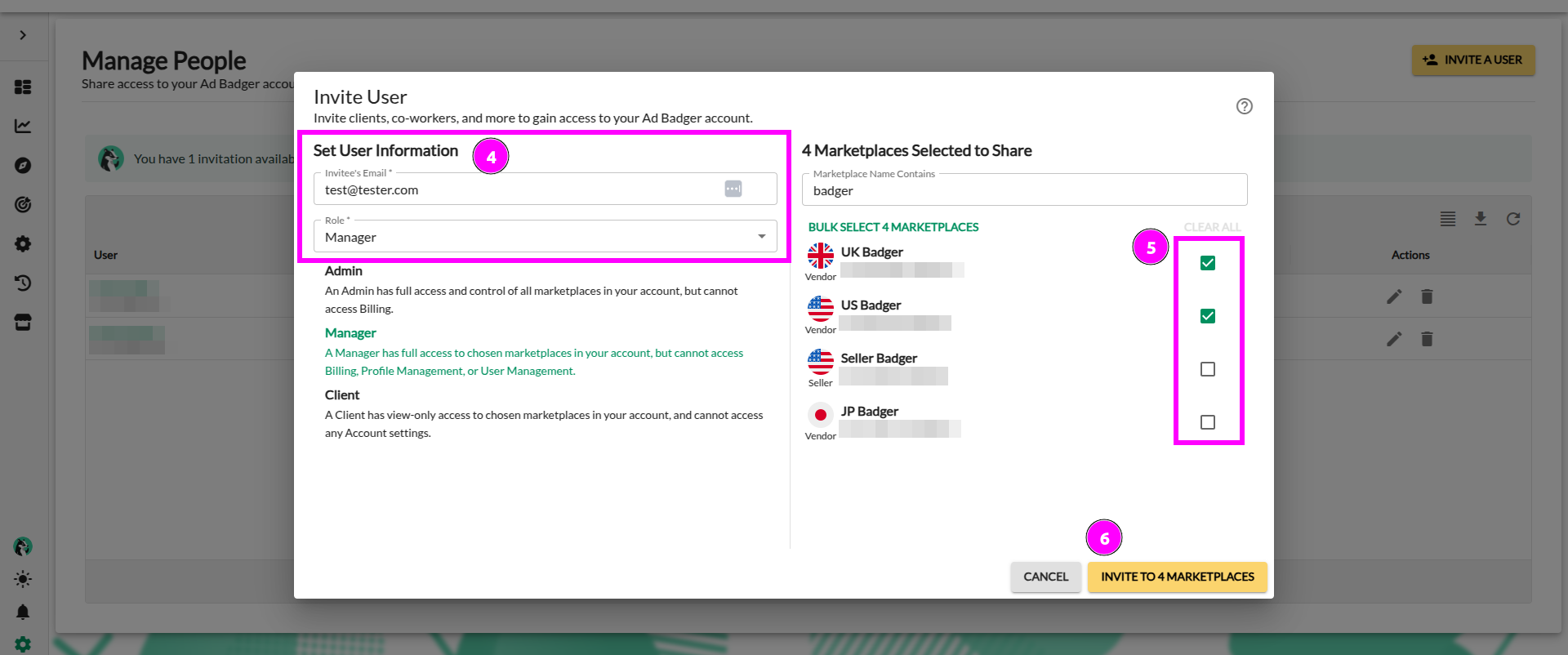
- Enter the email of the person you are inviting and set their role within your account.
- Note: If you invite someone who already has an Ad Badger account, use their Ad Badger email!
- Use the checkboxes on the right side of the screen to select which of your connected marketplaces you want to share with this new user.
- Note: If you select the role of Admin for this user, they will automatically get all of your marketplaces, and you will be unable to select specifics.
- Once happy with your settings, click "Invite to [number of selected marketplaces] Marketplaces" to send your invite!
Tips & Tricks for Managing Users
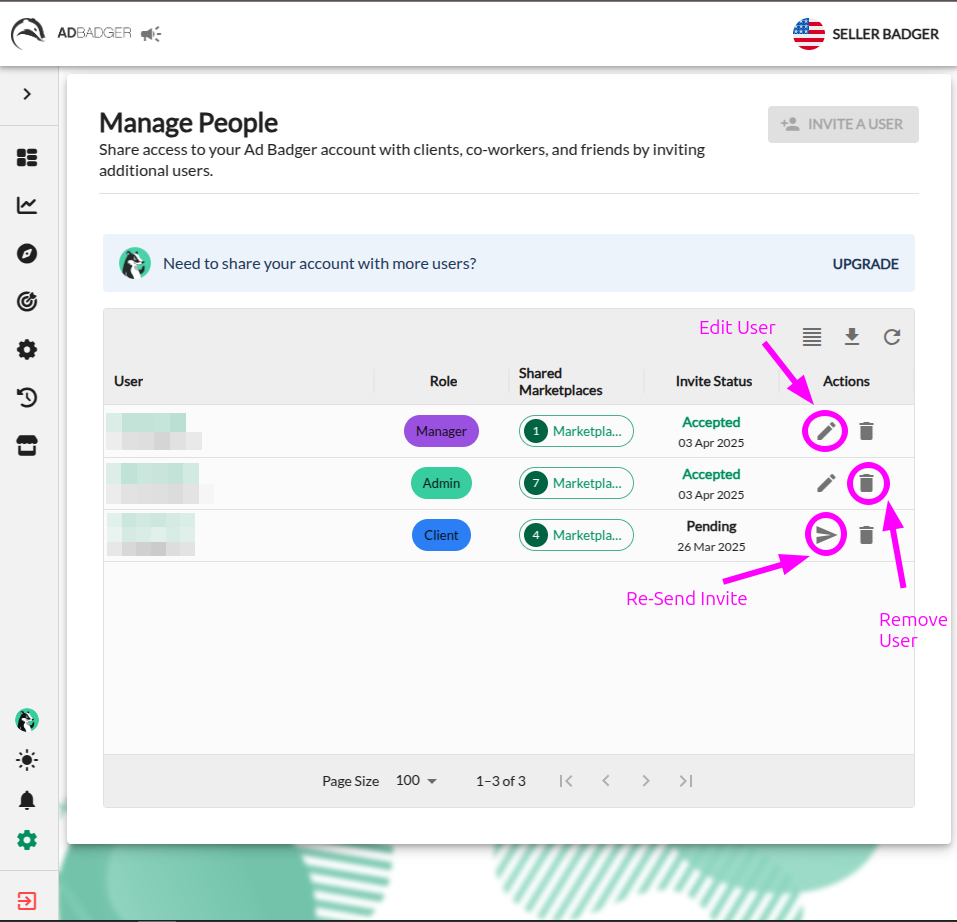
- Need to re-send your invite email? Use the "Re-send Invite" button on any Pending invite to re-email the invitee.
- Need to adjust an invited user's role or marketplace access? Use the "Edit User" button on any Accepted invite to update user permissions.
- **Need to delete an invite or an invited user?**Use the "Delete User" button on any invite to void Pending invites or remove Accepted users from your account.
- Delete someone by mistake? It's ok! Just send them a new invitation to the same email as before, and they will receive an email to join your account again.
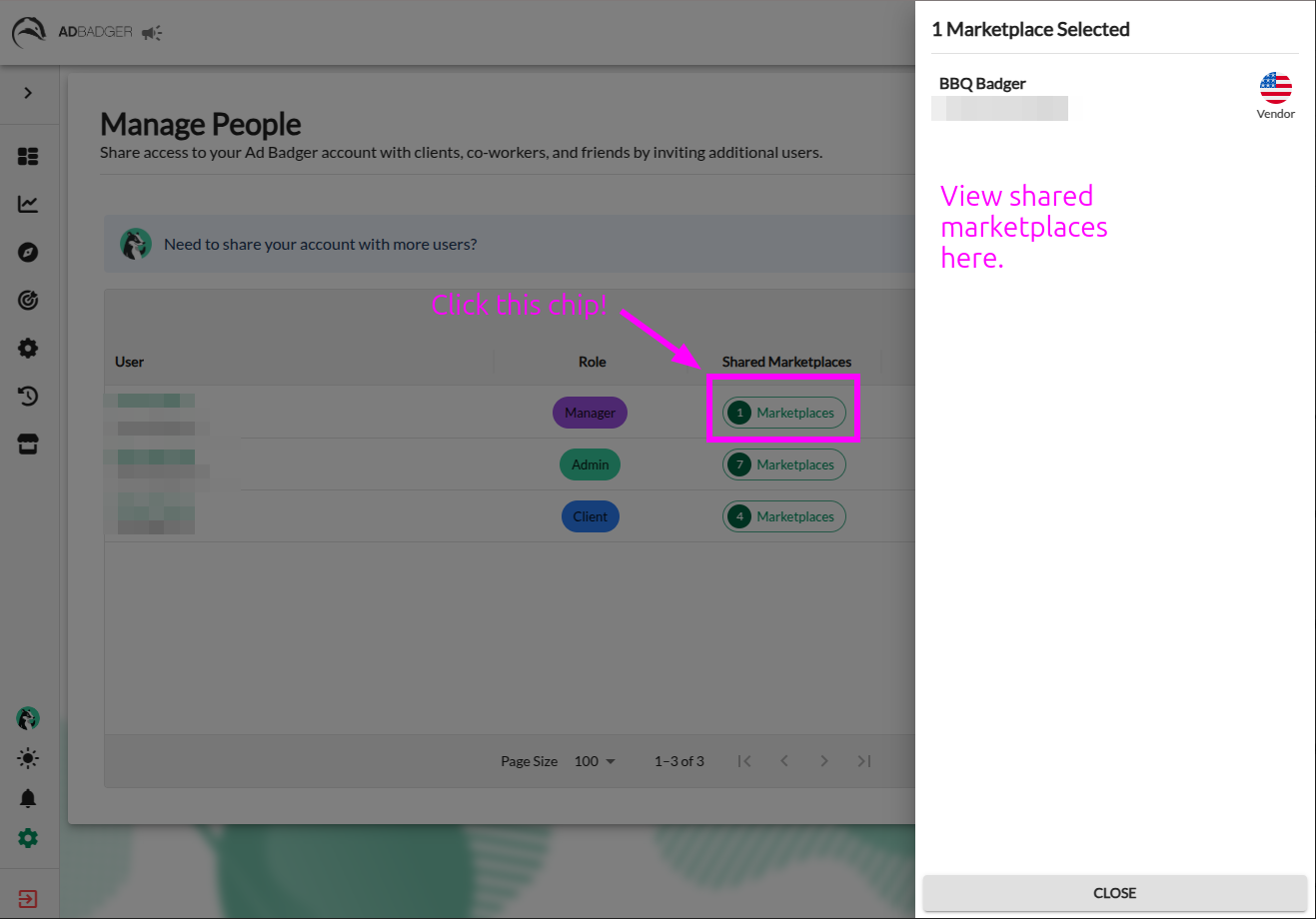
- Forgot which Marketplaces you shared with an additional user? You can click on the "Shared Marketplaces" click to open a read-only drawer of which marketplaces the user has access to.
What are the Additional User Roles?
There are four possible roles that an Ad Badger user could be: Owner, Admin, Manager, and Client.
Important things to know:
- There can only ever be ONE Owner of an Ad Badger account.
- Owners and Admins have edit access across all connected Marketplaces.
- Managers have edit access to only the Marketplaces that are shared with them.
- Clients have view-only access to only the Marketplaces that are shared with them.
Let's look at a breakdown of each role's permissions within an account.
| | Owner | Admin | Manager | Client | | Access Billing information, manage the account's subscription, and purchase or remove subscription add-ons. | ✅ | ❌ | ❌ | ❌ | | Access the Manage People screen, invite new users, and manage existing users. | ✅ | ✅ | ❌ | ❌ | | Add and remove Amazon Accounts, Stores, and Marketplaces. | ✅ | ✅ | ❌ | ❌ | | Dashboard Screens | ✅ | ✅ | View & Edit access for Shared Marketplaces | View Only access for Shared Marketplaces | | Analytics Screens | ✅ | ✅ | View & Edit access for Shared Marketplaces | View Only access for Shared Marketplaces | | Ad Manager | ✅ | ✅ | View & Edit access for Shared Marketplaces | View Only access for Shared Marketplaces | | N-Gram Explorer | ✅ | ✅ | View & Edit access for Shared Marketplaces | ❌ | | Search Term: Quick Attack | ✅ | ✅ | View & Edit access for Shared Marketplaces | ❌ | | Search Term: Duplicate Hunter | ✅ | ✅ | View & Edit access for Shared Marketplaces | ❌ | | Negative & Positive Nightly Hunts | ✅ | ✅ | View & Edit access for Shared Marketplaces | ❌ | | Dayparting Tools | ✅ | ✅ | View & Edit access for Shared Marketplaces | ❌ | | Bidding History | ✅ | ✅ | View & Edit access for Shared Marketplaces | View Only access for Shared Marketplaces | | Nightly Hunt History | ✅ | ✅ | View & Edit access for Shared Marketplaces | ❌ |
Questions?
If you have any additional questions, contact us at thebadger@adbadger.com.