Keyword Rank Tracking is a powerful new feature that allows you to monitor how your keywords are performing in Amazon search results. By keeping an eye on keyword ranking trends, you can identify new optimization opportunities and measure the impact of your advertising and SEO efforts.
Important Notes Before You Get Started
Tracking Limit
You can track up to 50 keywords at a time. Need more? You can add extra Rank Tracking keywords to your subscription as an add-on. See Changing Your Plan If You Have Add-ons below for how add-ons affect plan changes.
Daily Ranking Updates
Rank Tracking records your keyword positions once every 24 hours. You can view up to 30 days of ranking history for each keyword.
Keyword-Product Connection
Each keyword must be paired with a specific ASIN and Amazon marketplace domain (e.g., United States, United Kingdom).
‘NF’ (Not Found)
If you see NF in the table, it means your product didn’t appear in Amazon’s search results for that keyword on that date.
🧭 So, How Can I Use the Tool?
Here’s a simple step-by-step guide to help you make the most of the Rank Tracking feature.
Accessing Rank Tracking
Go to your Dashboard and click Analytics in the left-hand menu.
Under Analytics, select Rank Tracking → Rank Tracking Results.
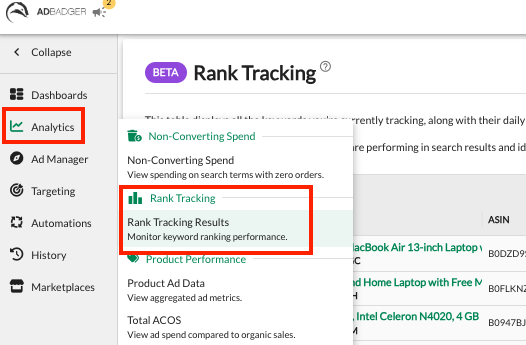
This opens the Rank Tracking page, where you can start adding keywords to monitor their ranking performance.
The Rank Tracking screen combines data from all marketplaces linked to your account, allowing you to view and manage your tracked keywords in one place.
Adding Keywords to Track
Click the Manage Keyword Tracking button in the upper-right corner of the Rank Tracking screen.

In the Manage Tracked Keywords window, you can:
Enable/Disable keyword tracking using the toggle switch.
Delete keywords by clicking the 🗑️ icon.
Add new tracked keywords anytime by clicking Add Tracked Keyword.
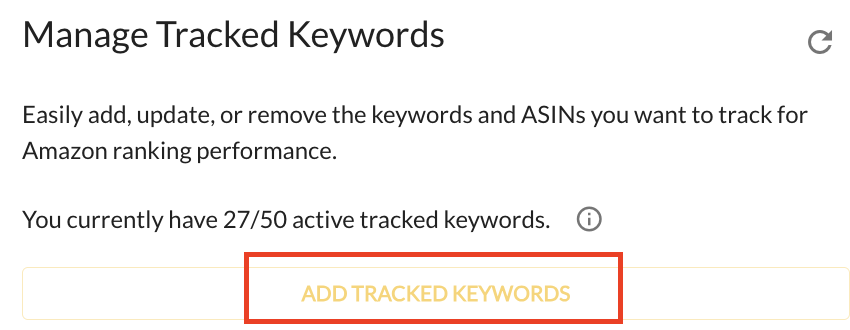
Adding Tracked Keywords: Step-by-Step
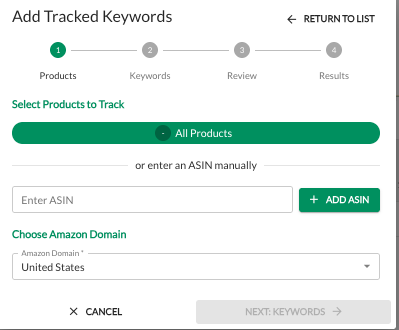
Step 1: Select Products (Bulk Power)
In the Products tab, define which items you want to monitor.
-
All Products: Select your entire catalog with one click.
-
Manual Entry: Paste specific ASINs and click + Add ASIN. You can add multiple ASINs here to create combinations in bulk.
-
Domain: Confirm your target Amazon marketplace from the dropdown.
-
Click "Next Keywords" to begin tracking.
Step 2: Select Keywords (Smart Suggestions)
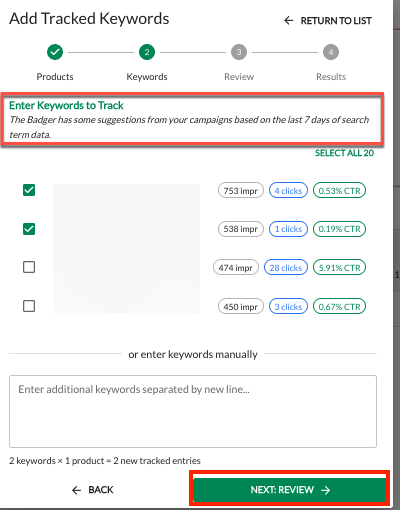
The Keywords tab now helps you identify your most important targets:
-
Smart Suggestions: Review the list of terms where you are already winning clicks and impressions in your ad campaigns. Select the most relevant ones to start tracking their organic rank.
-
Manual Entry: You can still add your own custom list of keywords by typing them into the text box at the bottom.
-
Click "Next Review"
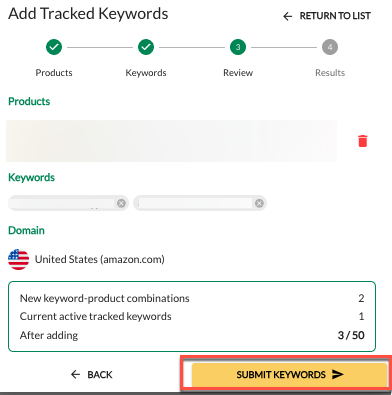
Step 3: Review Your Plan
The new Review screen acts as your final checkpoint:
-
Audit Your List: See a clear breakdown of the Products and Keywords you've selected.
-
Check Your Capacity: View a real-time counter showing your New combinations, Current active keywords, and your Total limit (e.g., 3/50).
-
Finalize: Once everything looks correct, click Submit Keywords.
Managing Existing Keywords
Once your keywords are added, you can manage them from the main Rank Tracking table. Use this data to:
-
Identify Ranking Gaps: Spot keywords where you have high ad sales but low organic rank—these are your best opportunities for SEO optimization.
-
Monitor Trends: Watch how your organic position changes over time as you adjust your PPC strategy.
-
Optimize Your Slots: Use the limit tracker to swap out keywords that have reached #1 for new "Smart Suggestions" discovered by the tool.
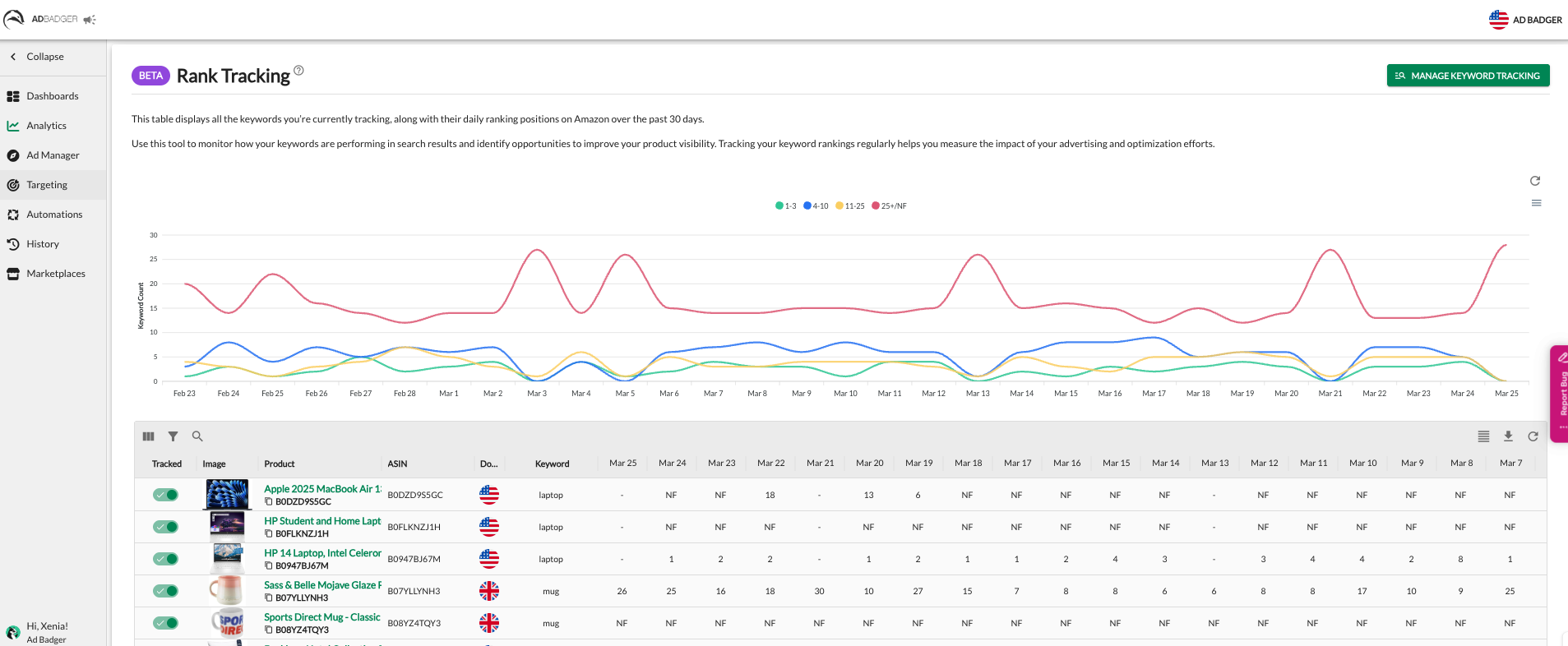
Understanding the Rank Tracking Table
The table displays:
Tracked: Shows whether keyword tracking is active (toggle ON/OFF).
Image: Product image for easy identification.
Product / ASIN: The product you’re tracking.
Domain Flag: Indicates the marketplace (🇺🇸, 🇬🇧, etc.).
Keyword: The term being tracked.
Daily Rankings: Keyword rank positions over the past 30 days.
NF = Not Found in search results for that day.
Use this data to measure progress, detect drops in visibility, and refine your PPC or listing optimization strategy.
Using Rank Tracking Data
Check rankings weekly to monitor performance.
Identify rising or falling keywords and adjust ad targeting or listings accordingly.
Combine with Ad Manager data to see which keywords convert best.
Focus on top-performing keywords for improved visibility and ROI.
Changing Your Plan If You Have Add-ons
If your subscription includes add-ons, such as extra users, extra marketplaces or extra Rank Tracking keywords, you won’t see the Update Subscription option in the billing portal. You also won’t see it while an add-on change is waiting for your next renewal.
This is because your plan and your add-ons are billed together on the same schedule, so they have to change together.
To change your plan or billing cycle:
-
Click the Live Chat bubble in the lower-right corner of the tool.
-
Tell us the plan and billing cycle you’d like, for example “Pro Badger, billed annually”.
-
We’ll move your plan and your add-ons over together, so your add-ons switch to the new billing cycle at the matching price. Our team will confirm the new price with you before making the change.
Your add-ons, users and tracked keywords stay as they are. Only the plan and billing cycle change.
Rank Tracking for Amazon PPC
Rank Tracking empowers sellers to take control of their keyword strategy, providing clear visibility into search performance trends. By understanding and adapting to changes in keyword rankings, you can strengthen your advertising strategy, enhance product discoverability, and improve long-term results.
We’d love to hear your feedback — your insights help us make Rank Tracking even better!
We hope this detailed guide helps you make the most of our new Rank Tracking feature. Monitoring your keyword performance regularly will give you valuable insights into your product visibility and advertising effectiveness.
💬 Need Help?
Reach out to our Support Team anytime through the Live Chat bubble in the lower-right corner of the tool.