The Billing page is where you manage your Ad Badger subscription, add extra users or Rank Tracking keywords, check your ad spend, and cancel if you need to.
To open it, click the Settings gear, then Billing (app.adbadger.com/#/settings/billing). Only the account Owner can see this page.
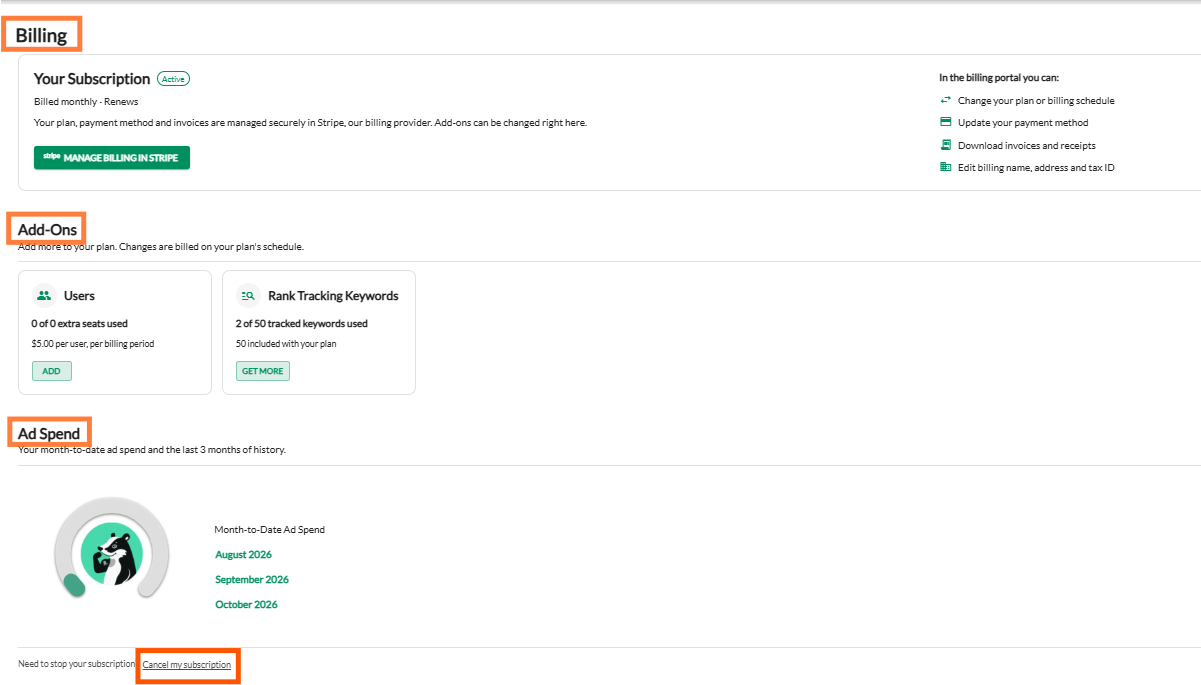
The page has three sections.
Your Subscription
This card shows your subscription status (for example Active), how you're billed (for example "Billed monthly") and when it renews.
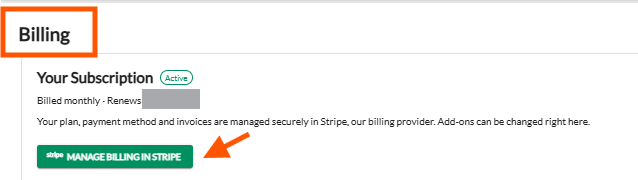
Your plan, payment method and invoices are managed securely in Stripe, our billing provider. Click Manage Billing in Stripe to:
- Change your plan or billing schedule. See How to Change Your Subscription Plan.
- Update your payment method
- Download invoices and receipts
- Edit your billing name, address and tax ID
Add-Ons
Add-ons are changed right on this page, not in Stripe. Each add-on has its own card, and changes are billed on your plan's schedule.
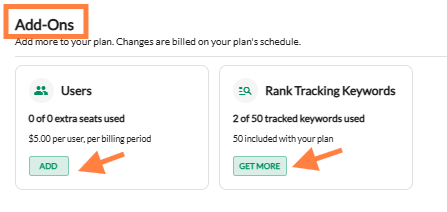
Users. Shows how many extra seats you have and how many are in use, for example "0 of 0 extra seats used". Click Add to add seats. See How Do I Add An Additional User to Ad Badger?
Rank Tracking Keywords. Shows how many tracked keywords you're using out of your total, for example "2 of 50 tracked keywords used". Every plan includes 50. Click Get More to add a keyword pack. See How much does Rank Tracker cost, and how do keyword add-on packs work?
When add-on changes take effect:
- Adding is charged today and is ready to use straight away.
- Lowering takes effect at your next renewal. Until then, a banner on the Billing page shows the change that's waiting.
Ad Spend
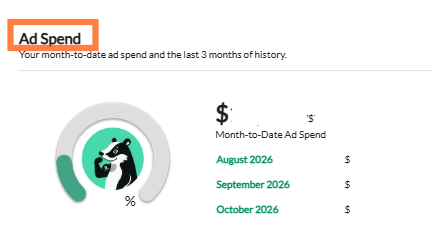
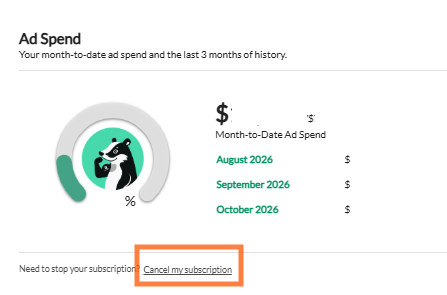
Shows your month-to-date ad spend and your last 3 months of history. If your ad spend goes more than 10% over your plan's limit, an overage fee applies. See Understanding Overage Fees.
Canceling your subscription
At the bottom of the Billing page, next to "Need to stop your subscription?", click Cancel my subscription.
Before you do, see How do I Cancel My Subscription? for what to do before you cancel and what happens next.
💬 Need Help?
Questions about pricing, refunds or changing your plan? Reach out to our Support Team through the Live Chat bubble in the lower-right corner of the tool, and we'll help.